 Greg Marshall

Most GoHighLevel accounts I go through were built a workflow at a time. Each one made sense when it went in. A year or two later there are folders full of them, and nobody in the business can say for certain what fires when a new enquiry comes in, which workflows contradict each other, or where a lead ends up when it drops out of a sequence.
From the outside it all looks fine. Enquiries come in, texts go out, the diary fills up. But looking fine and working properly are not the same thing, and the gap between them is usually where leads slip away without anyone noticing.
You can find out which it is yourself, before you pay anyone. GoHighLevel can now describe its own workflows in plain English, and an AI can read the whole lot at once and tell you where it doesn’t hang together. The export takes about 15 to 20 minutes for most accounts. This is the method I use, and where it stops being enough.
What do you need before you audit GoHighLevel with AI?
You need access to your GoHighLevel account, a Google Doc, an AI tool that accepts a document attachment, and the audit prompts. I use Claude, but any AI that can read an attached Word document should do the job.
The prompts are linked in the description of the video on this page. There are four sets: the main audit, a second pass, a customer journey map, and three prompts for tidying up names and folders.
You don’t need to be technical. Most of the work is careful copying and pasting. And if your account has no naming convention and the folders are a mess, that is fine. The last step of the process sorts that out.
How do you export every GoHighLevel workflow into one document?
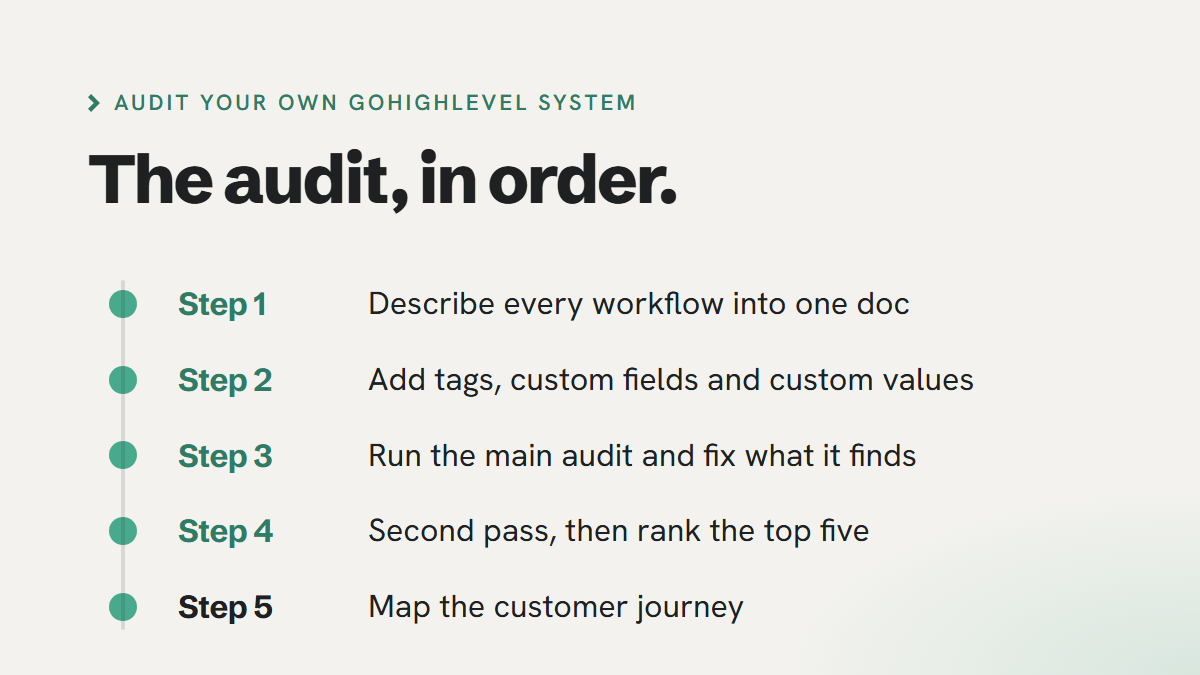
Open each workflow, use the Describe this workflow function in Workflow AI, and paste the result into a Google Doc under the workflow’s name, with one tab per folder. Work from the first folder down so nothing gets missed.
For each workflow:
- Open it and copy the workflow title into the doc.
- Open Workflow AI and choose Describe this workflow. It writes out what the workflow does, step by step.
- Copy everything from the trigger down to the last step. Leave out the summary at the bottom, it repeats what is above it.
- Paste it under the title and move on to the next workflow.
Give each folder its own tab in the Google Doc and name the tab after the folder, so a folder called “System and global” gets a tab called “System and global”. When every workflow is in, go to File, Download, Microsoft Word, and include all the tabs.
For a typical account that is 15 or 20 minutes. If you have a lot of workflows it takes a bit longer. Either way, that is the hard part done.
How do you get your tags, custom fields and custom values out of GoHighLevel?
Ask GoHighLevel’s Ask AI for your tags and custom values, and copy your custom fields straight from Settings, because Ask AI doesn’t return them reliably. Paste each list into its own tab in the same document.
For tags, something as simple as “Could you please provide me with all tags in this account?” works. Do the same for custom values. Custom fields are where Ask AI struggles, and once you have more than about 20 of them it tends not to return the full list. So go to Settings, then Custom Fields, and copy them from there.
These lists matter because workflows talk to each other through tags and fields. With them in the document, the AI can check what each workflow relies on against what actually exists in the account, rather than taking it on trust.
What does the AI need to know about your business before it audits?
It needs nine answers, filled in at the top of the main audit prompt: what you do, who buys, how leads arrive, what you want a lead to do, the average value of a customer, roughly how many leads a month come in, who handles leads, what you already know is broken, and what “too slow” means to you.
Without those answers the AI can only describe what your workflows do. It can’t judge whether that is right for your business. What counts as too slow for one business is perfectly fine for another, and if you don’t say, the AI will guess.
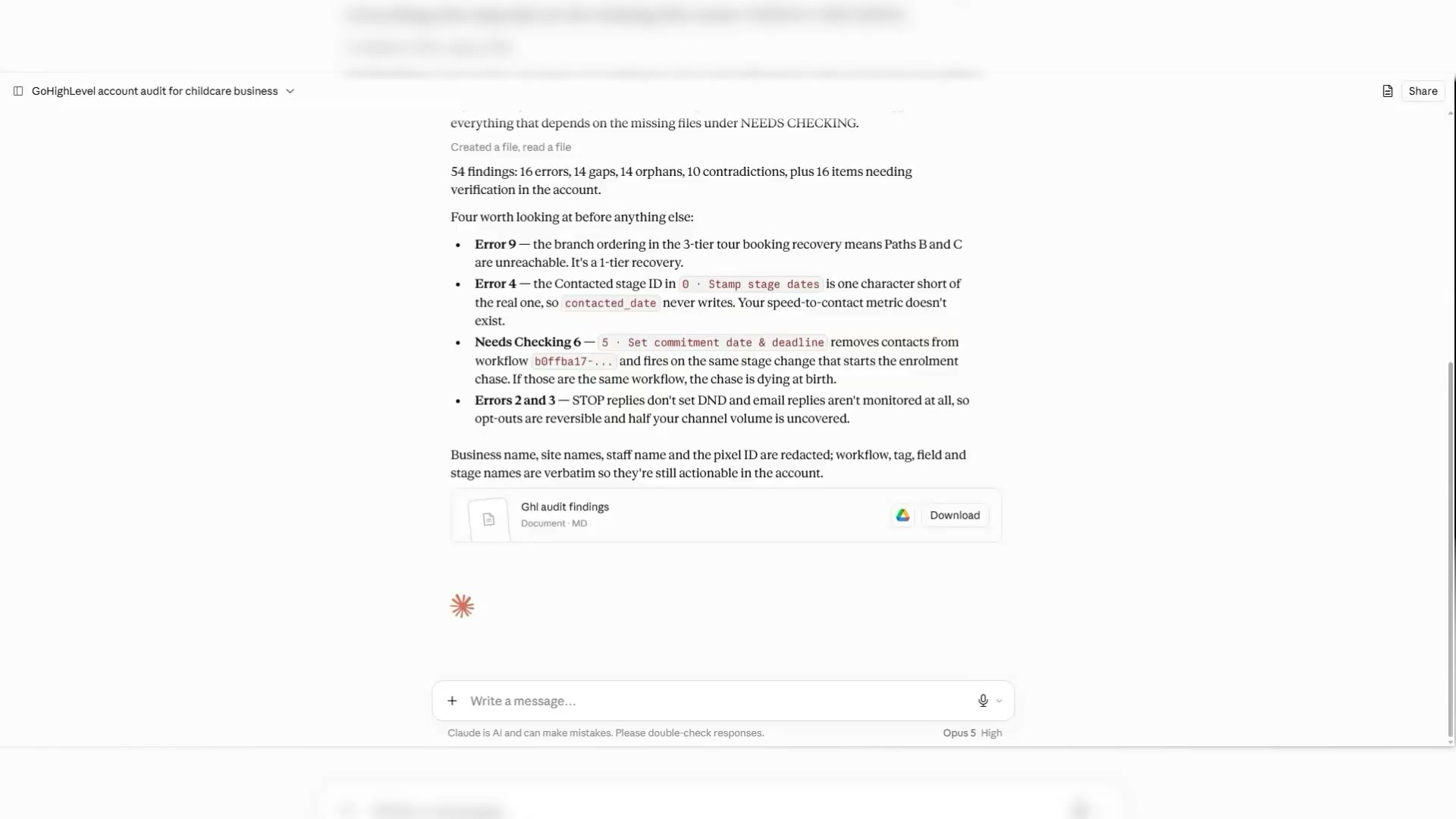
Once the answers are in, paste the prompt into your AI, attach the Word document, and let it run. What comes back is a list of findings: errors, gaps, contradictions between workflows, and things it thinks you should be doing and aren’t. Go through those findings and make the fixes in GoHighLevel. That is part one.
How do you decide what to fix first?
Run the second pass prompt to find the categories costing you the most money, then ask the AI to rank what is left by revenue, effort and dependency. You get a top five, in order, with roughly how long each one takes and what needs doing.
The first pass can come back with a long list, and trying to fix all of it at once is how things end up half done. The ranking keeps it manageable. Dependency is the part that is easy to overlook. If one workflow relies on a tag that another is meant to apply, fixing the first one on its own changes nothing.
For a sense of scale, the average audit we run finds 6.8 leaks. A ranked five is a realistic amount to work through in a week or two, starting with whatever is costing you the most.
Can you see your GoHighLevel system as a flowchart?
Yes. The customer journey prompt turns your export into a diagram of how a lead moves through the system, with the errors and missing pieces it found marked in red.
Use the top half of the prompt on its own first. It produces a diagram you can check over to make sure it matches how you think the business works. Zoom in on the red sections and you can see exactly where a lead would get stuck or drop out. My advice is to make the fixes from the audit before going any further, then export again and run the diagram on the updated version. That way the flowchart you keep shows the system as it is now, with fewer red sections, rather than as it was. The second half of the prompt then writes a prompt for Claude Design, which turns the diagram into a cleaner flowchart you can show the team.
How do you tidy up workflow names and folders?
Three last prompts handle it: one sets a naming convention, one suggests a folder structure, and one produces a renaming map with the new name for every workflow and folder. Review each output, change anything you don’t like, then apply the renaming map in the account.
This is not cosmetic. The next time you or anyone else opens the account, a clear name tells them what a workflow does before they click into it, and the next audit is quicker because the export is already organised.
What can’t an AI audit of GoHighLevel tell you?
It can only judge what is written in your workflows, not what actually happens when a lead comes in. If a workflow creates a task for someone to ring a lead back, the AI will see the task and say the step is there. It can’t tell you whether anyone makes the call.
The same goes for whether texts are actually being delivered, whether the team uses the calendars the way the workflows assume, and whether leads are being moved through the pipeline stages by hand or left where they are. Those are questions for the account itself, and for the people using it. The audit is also good at spotting a sequence that simply ends, which is usually a no-show or a quote that went quiet with nothing behind it. I have written separately about what to send after week two for those.
It is also only as good as the nine answers you gave it, and it will get the odd thing wrong. Read the findings with the account open before you change anything.
When not to bother. If you have a handful of workflows and built them yourself recently, you probably know what they do. Just read them. If you haven’t set GoHighLevel up yet there is nothing to audit, and the useful work is the seven decisions to make before you build, then planning the system on paper before anyone builds it. And if the real problem is that the team doesn’t use the system, an audit of the workflows won’t find that.
Where should you start this week?
Block out an hour, export your workflows into a document, fill in the nine answers and run the main audit prompt. Then fix the top one or two findings before you do anything else.
Once those are done, run the export again so the second pass works from the system as it is now, not as it was. And if you would rather have someone go through it with the account open, that is what the free audit below is for.